

Developer Guide
Use the Developer Guide to find the onboarding process steps, information about authentication methods, and a comprehensive list of the available ABC API endpoints.
Developer Guide
Developer Portal User Guide
Overview
The ABC Partner Developer Portal is our user portal for connecting to the ABC Supply APIs. User accounts are created for integrating customer and partners manually by the ABC Supply IT team. Once a user account is set up, requests for API access in our Sandbox environment will be auto-provisioned, allowing users to quickly access the APIs. Users can also update or delete their API access applications in the portal.
We are actively enhancing features in the Developer Portal and will soon have the ability for users to automatically create user accounts, request Production API access, manage their organization (i.e., other users), and view the latest API documentation.
NOTE: When you are ready to request Production environment access, please contact [email protected] to initiate the go-live process.
Getting Started
Account Registration
After meeting with the ABC Supply API product manager to review your integration plans, you will receive a link to a form to collect the required information for setting up your users’ accounts in the portal. If you are not an existing myABCSupply user, you will receive an email directly from Okta to complete the creation of your user credentials before your access is fully activated.
Portal Access
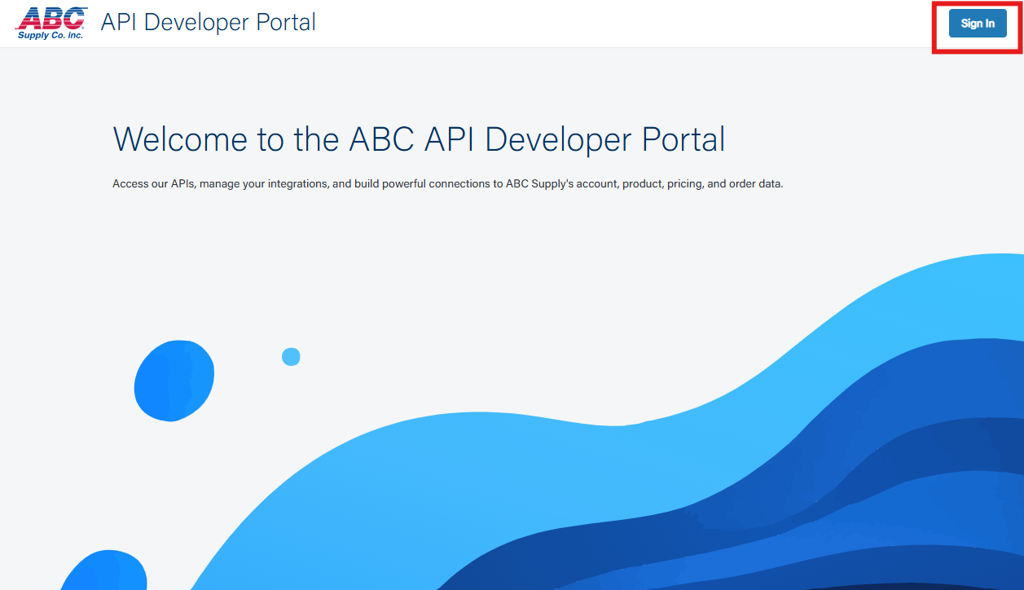
- Once you receive confirmation that your account is active, please go to https://partners-developer.abcsupply.com/signin and click “Sign In” in the upper-right corner.
2. Log in with your new user credentials on the Okta login screen.
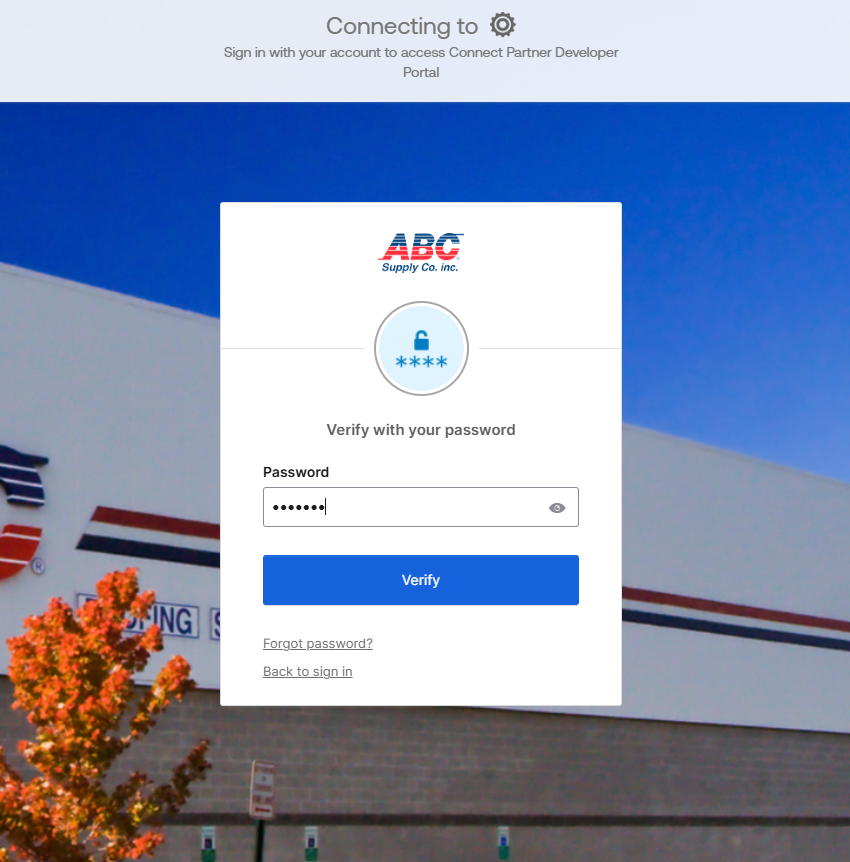
3. Once successfully logged in, you will be redirected to the portal home page.
Create a New API Access Request Application (Sandbox Only)
- From the home page, click “Create New App” in the upper-right section of the Manage Applications section.
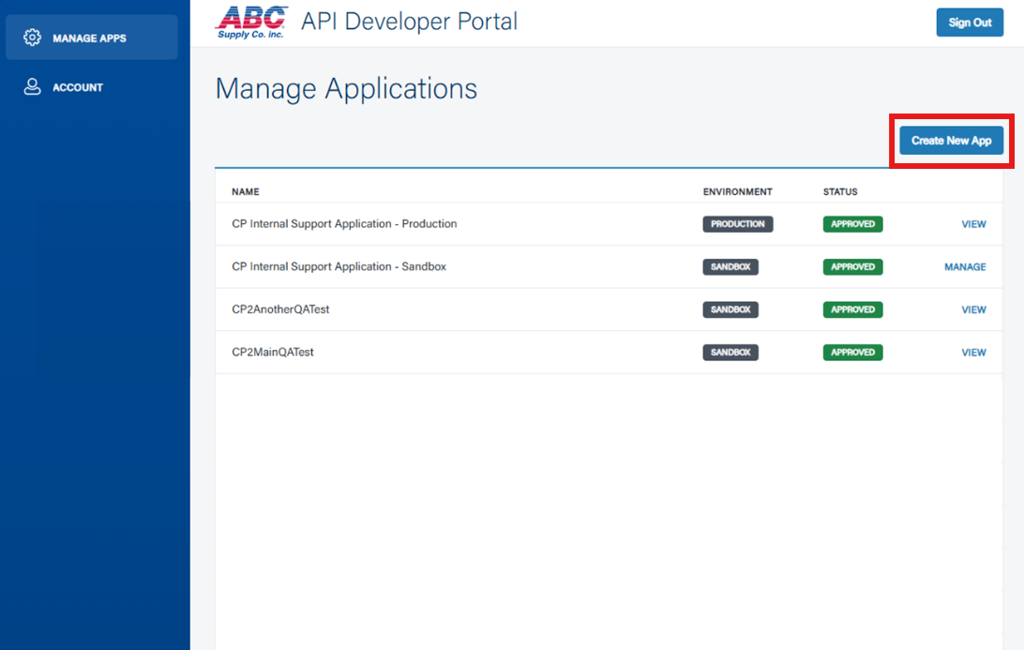
2. Provide the following details for your new API access request application:
- Application Name: Please use a name that helps us identify your access by your company for support and display purposes
- Application Type:
- Select “Individual Business” for direct integrations to a single ABC Supply customer account
- Select “Third-Party Aggregator” for integrations that will service multiple ABC Supply customer accounts
- Description: A short description of your integration
- Application URL: The URL for your application
- OAuth 2.0 Redirect URIs: Add as many URIs as needed for your application
- Application Owner Emails: Add any email addresses for individuals who will need access to manage the API access request application in the portal
- It is recommended to have an application owner email address that is available to multiple users for continued access to application credentials in the event an existing application owner’s access is no longer applicable
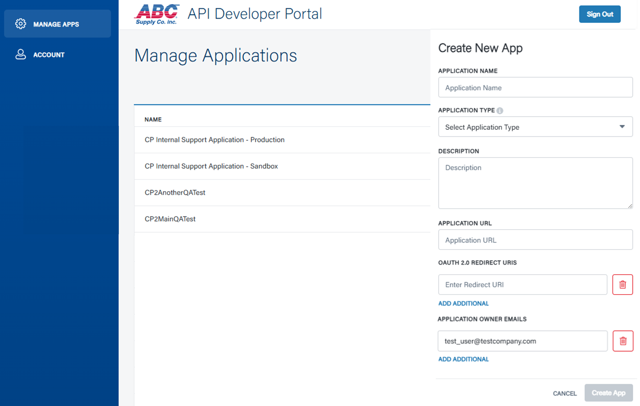
3. Click “Create App” in the bottom-right corner to request API access. Sandbox environment access will be auto-provisioned.
Manage Application Details – Application Owners
If you are an Application Owner, you will be able to view, modify, or delete an API access request application. You will also have the ability to see the application’s client ID and client secret.
NOTE: client secret is only available in the Application Owner’s Manage view; non-Application Owners will not be able to see this information.
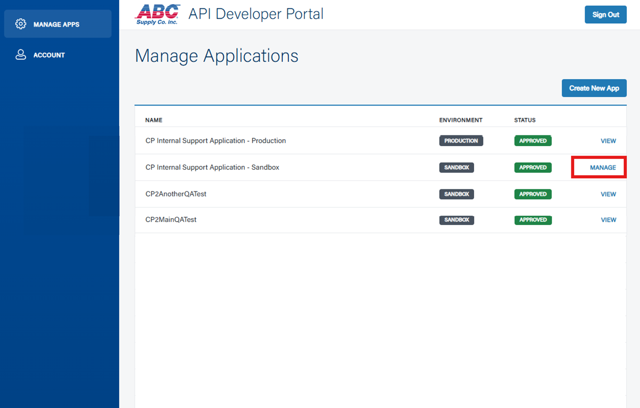
- Click “Manage” to the right of the application you would like to view, modify, or delete.
2. View or update any details about the application. Please note that Application Type is not an updatable field.
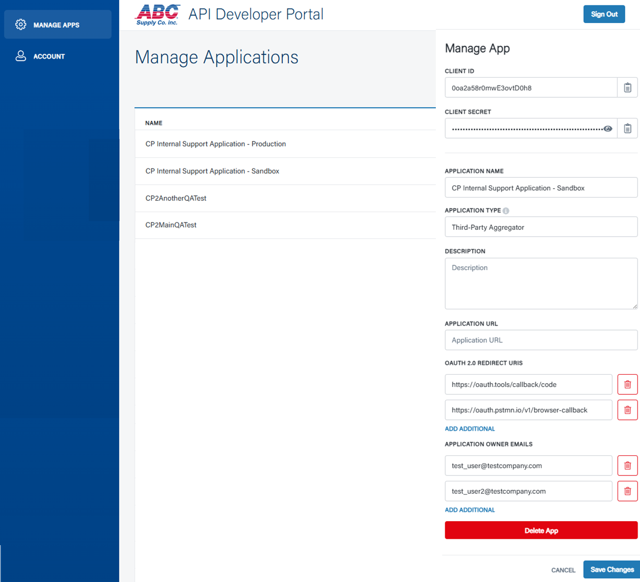
3. If any changes are made, please click “Save Changes” at the bottom-right of the Manage App details page to save.
4. If the application needs to be deleted, click “Delete App” at the bottom of the Manage App details page.
5. If no changes are made, click “Cancel” at the bottom-right of the Manage App details page to close the window.
View Application Details – Non-Application Owners
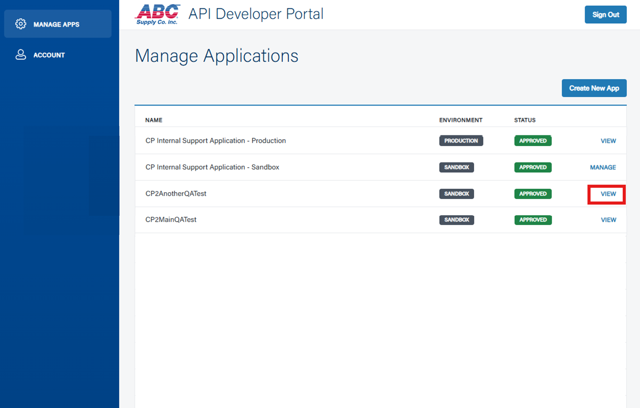
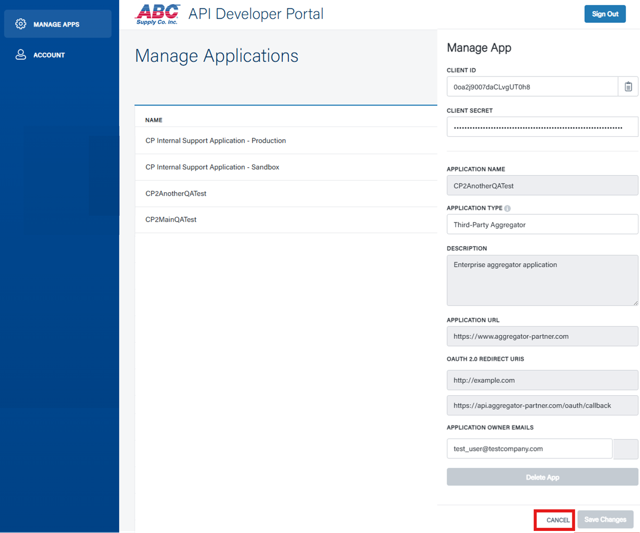
If you are a Non-Application Owner with access to an application, you will have the option to view application details by selecting “View” to the right of any existing applications to which they have access. Please note that client secret will be hidden from view; only Application Owners are able to see this information.
- Click “View” to the right of the application you would like to view.
2. Click “Cancel” at the bottom-right of the Manage App details page to close the window.
Manage Account
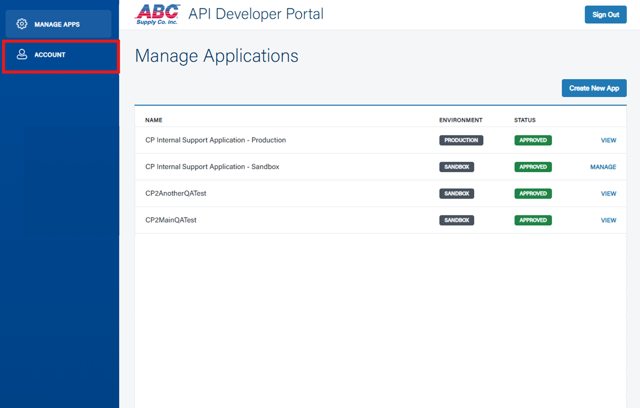
- Select “Account” from the left navigation bar.
2. View or update any details as needed.
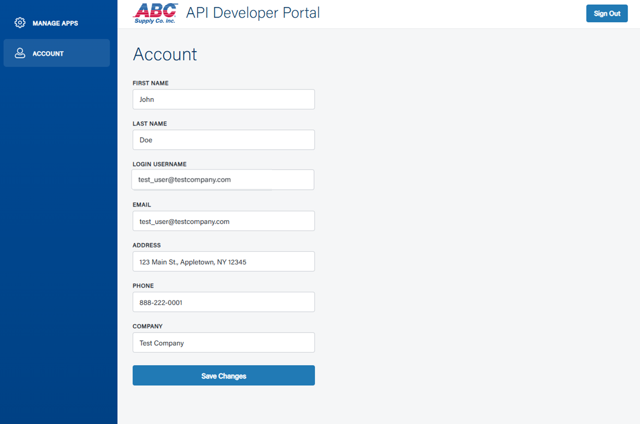
3. Click “Save Changes” to update your account details.
Sign Out
To sign out of the portal, click “Sign Out” in the upper-right corner of any page. You will be redirected to the main sign-in page.