

Developer Guide
Use the Developer Guide to find the onboarding process steps, information about authentication methods, and a comprehensive list of the available ABC API endpoints.
Developer Guide
Developer Portal User Guide
Overview
The ABC Partner Developer Portal allows integrators to access the ABC Supply APIs and offers the following features:
- configure and auto-provision API access instance in the ABC Supply APIs Sandbox environment
- manage Developer Portal user account
- manage an API access organization and invite other users to the organization
- configure and request access to ABC Supply APIs Production environment
Portal Sign-up and Access
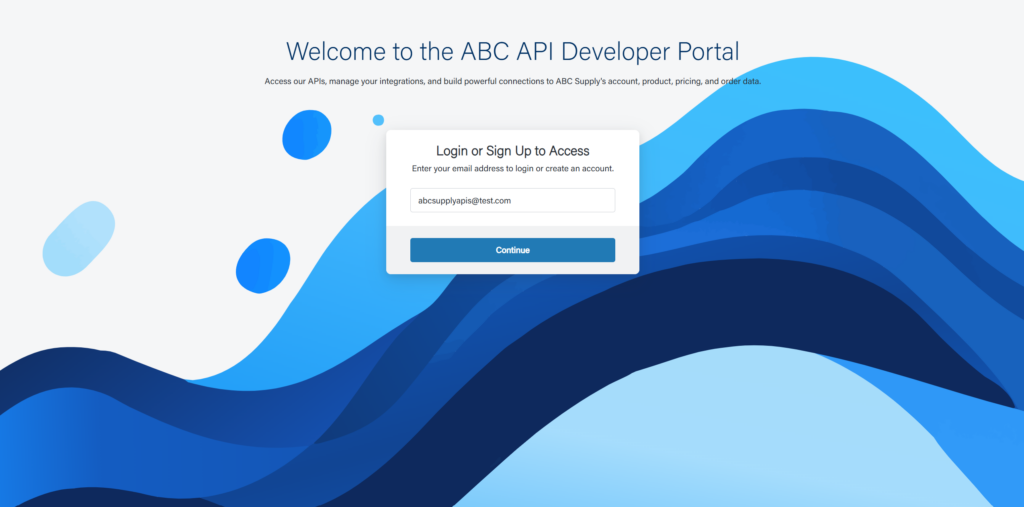
- Go to ABC Supply Partner Developer Portal and enter your email address. NOTE: Please use an email that you can receive ongoing communications from ABC Supply regarding your integration. We will use this email to contact you about Product Requests and important information about your API connection.
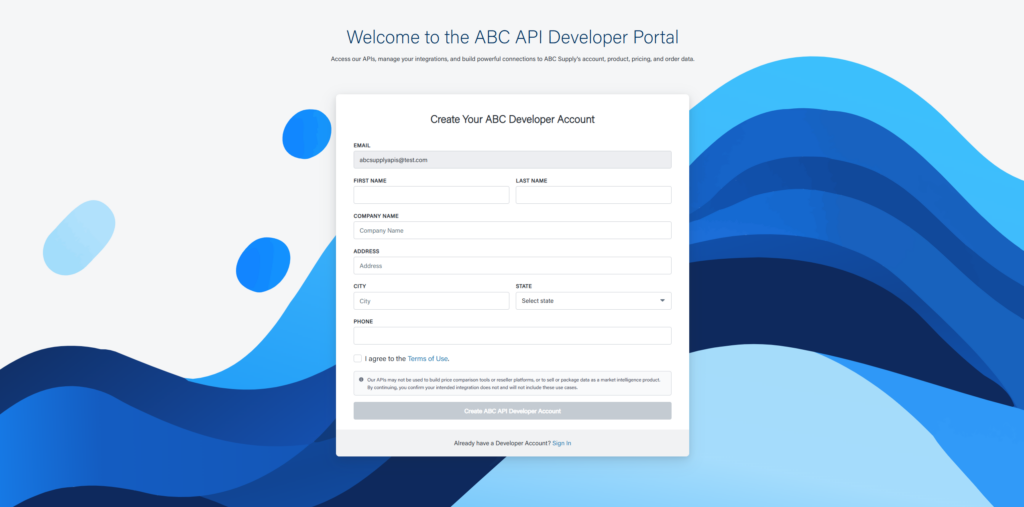
2. Complete the Developer Account form with contact information, read and accept the Terms of Use, and click “Create ABC API Developer Account”.
3. An email will be sent to the provided email address for verification. Click the provided link to verify and activate your account.
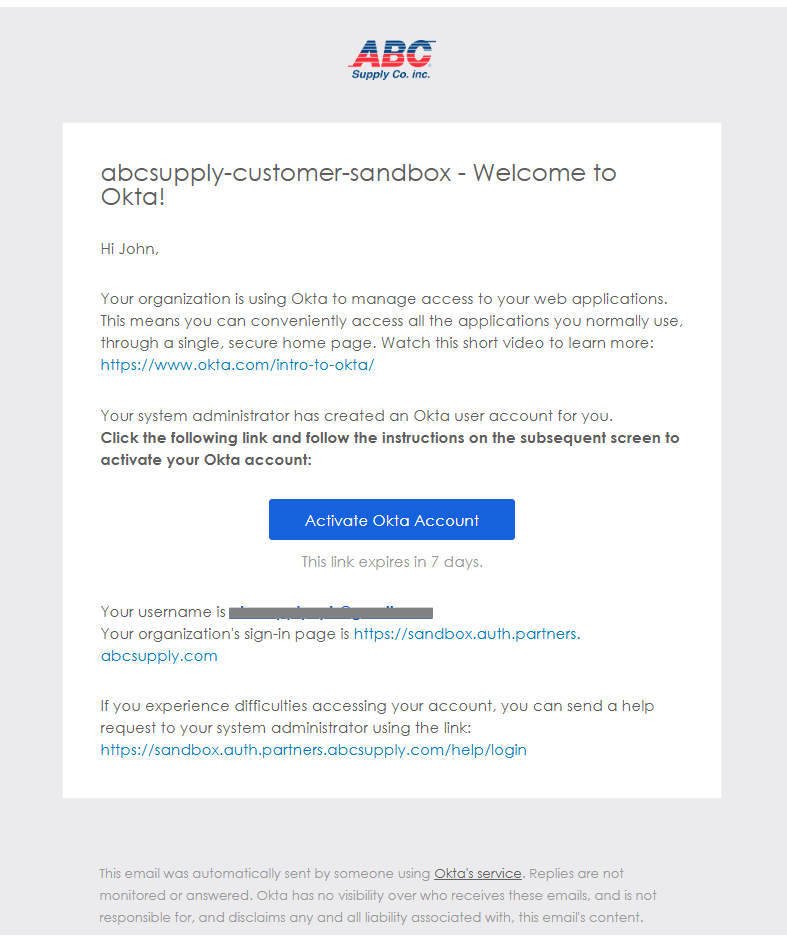
4. Complete credential setup through Okta by creating a password and optionally setting up Okta Verify.
5. Return to the Developer Portal login screen and enter your credentials to sign in.
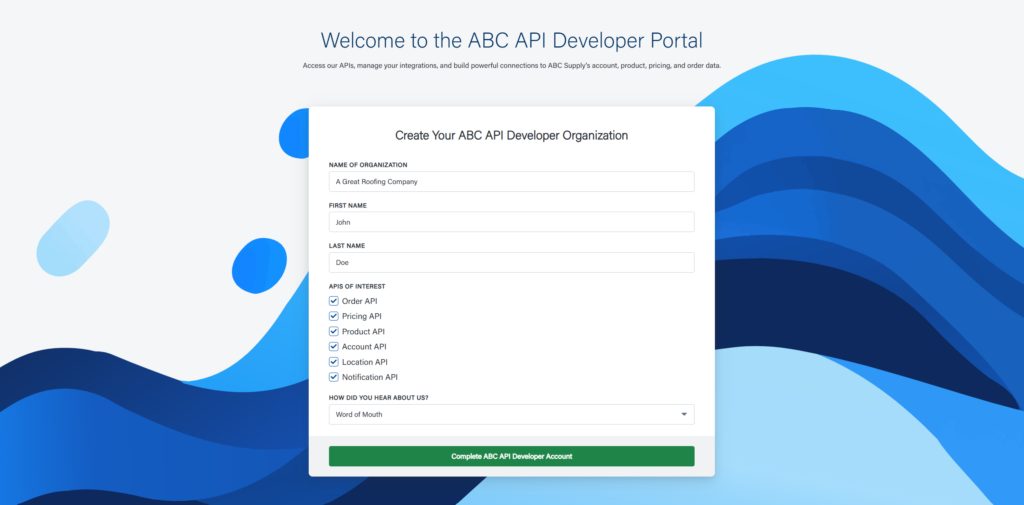
6. Create a Developer Organization by entering the required information. Click “Complete ABC API Developer Account” to proceed.
NOTE: Please use an Organization name that makes it easy for ABC Supply to identify your company or product in the event you need integration support.
You will be directed to the Developer Portal homepage and are ready to create your first API access application!
Create a New API Access Application (Sandbox Only)
- Click “Create New App”.
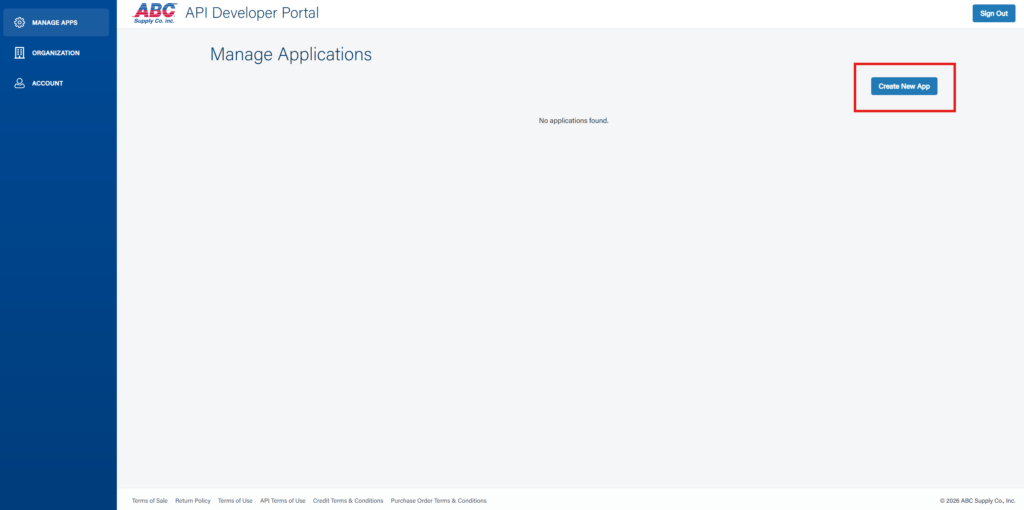
2. Provide required information for your application instance:
- Application Name – please choose a name that makes it easy to identify your company or product for integration support.
- Integration usage intent – choose the intended use of your integration to identify the application type.
- NOTE: specifying the correct type is critical for proper configuration of your API access application. Please see What Type of Integrator Are You for more details.
- Description (optional) – provide a brief description of your integration.
- Application URL (optional) – provide the URL of the platform, product, or company website for reference.
- OAuth 2.0 Redirect URI(s) – list the URI(s) your OAuth 2.0 code should use for the Auth Code Flow method, if applicable.
- NOTE: this field is currently required to create a new app. If you will not be using an OAuth 2.0 redirect URI in your integration, you may enter https://localhost:4000 or any other valid URI in this field.
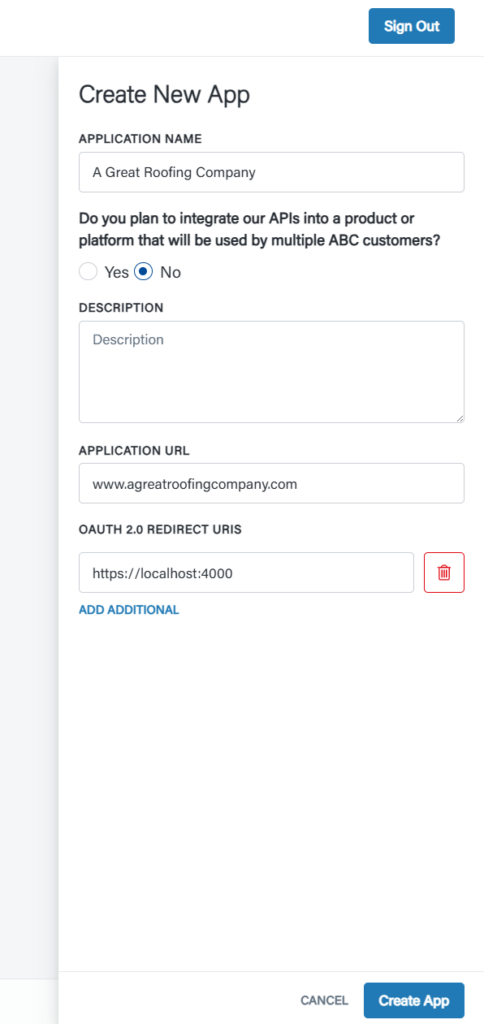
3. Click “Create App” to create and auto-provision your new API access application in the ABC Supply API Sandbox environment.
Your new application will appear in the list of applications under Manage Applications. The application’s Name, Environment, and Status are shown.
Manage Application Details
- To access or update any of the details for the application, click “Manage”.
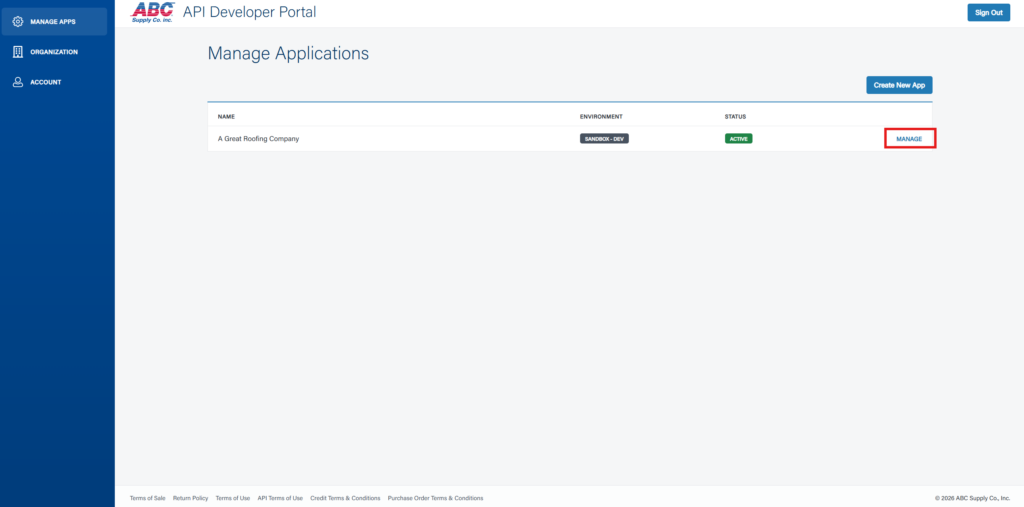
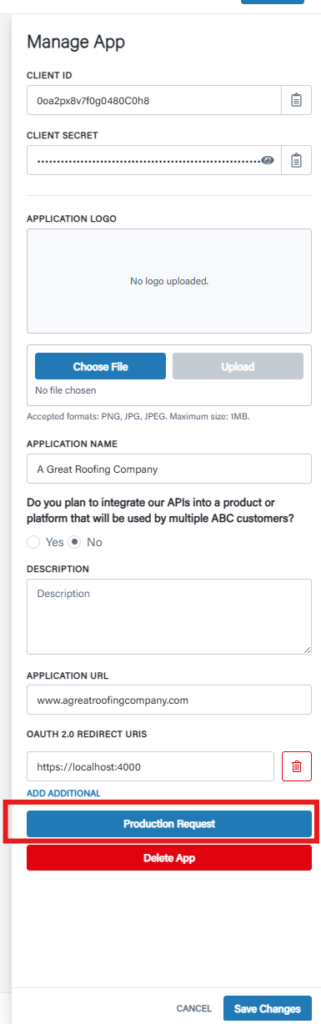
In Manage App, you can
- view Client ID and Client Secret
- add an application logo (used for Third-Party Aggregator Production applications only)
- update the application name, description, URL, or redirect URI(s)
- request Production access once your integration is developed and ready
- delete your API access application instance
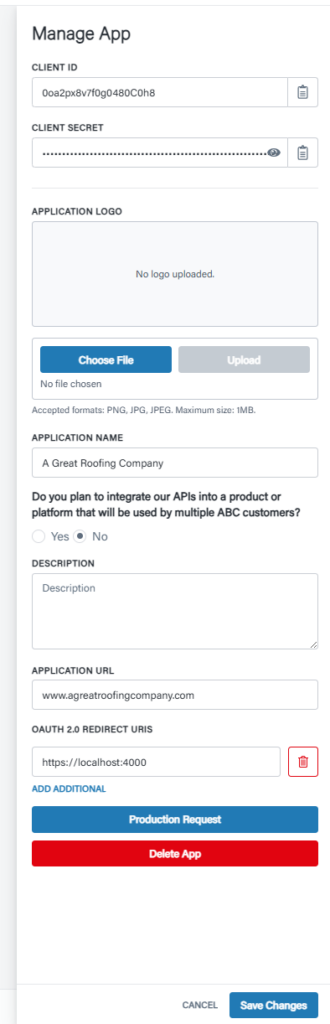
2. If any changes are made, please click “Save Changes”. Otherwise, click “Cancel” to close the Manage App flyout view.
Manage Account
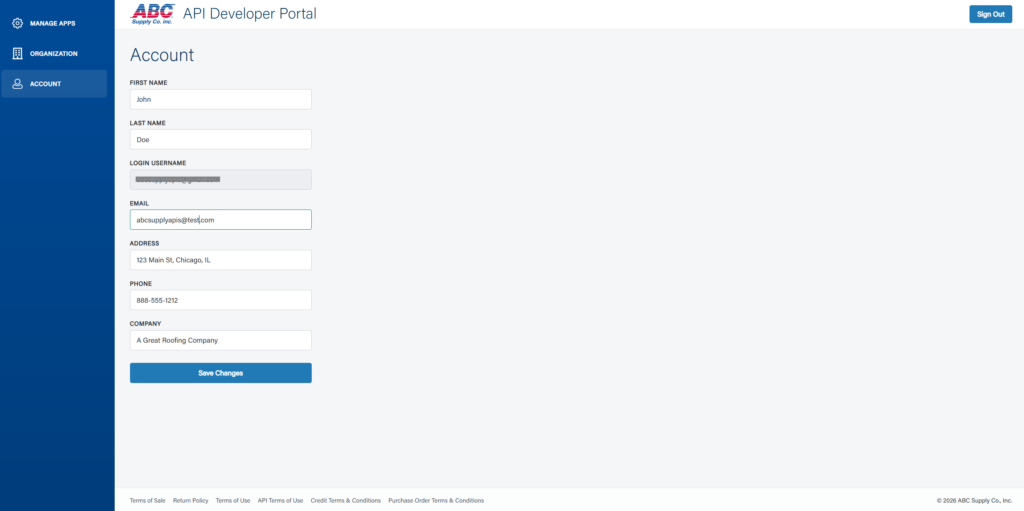
- To view and update your Account information, click “Account” on the left navigation menu.
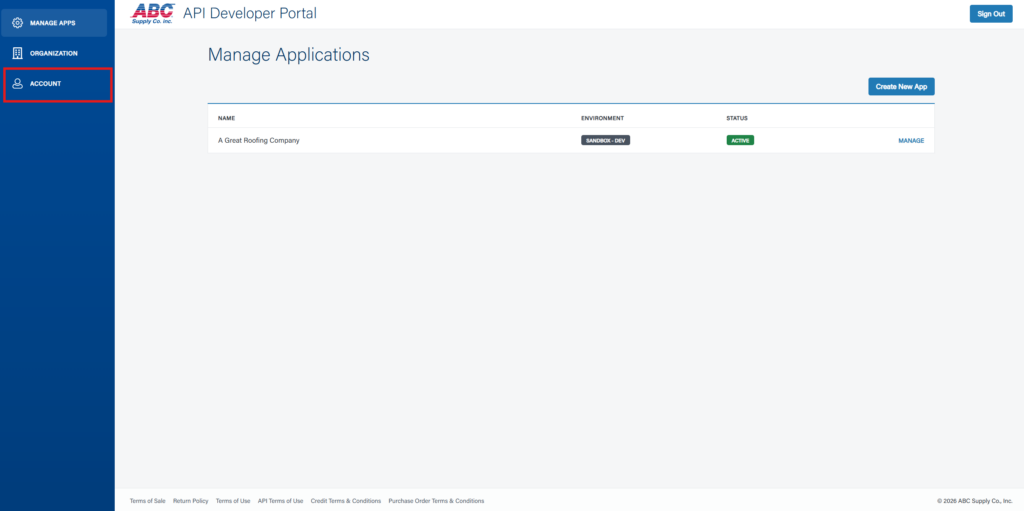
2. To update Account information, click “Save Changes”. To exit without changes, click “Manage Apps” on the left navigation to return to the Manage Apps view.
Manage Organization and Invite Users
The Organization view allows you to
- view or update Developer Organization details
- view, invite, or manage additional users
- Click “Organization on the left navigation menu.
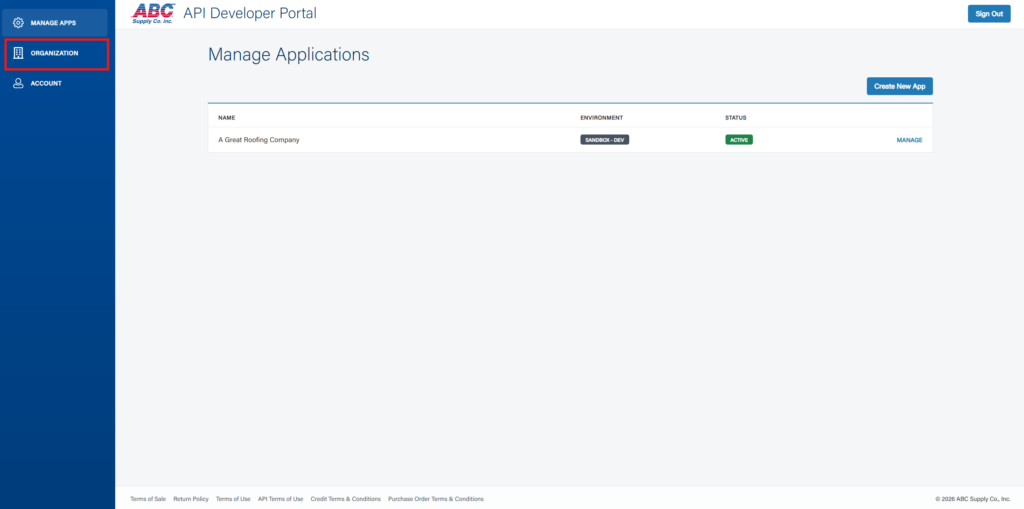
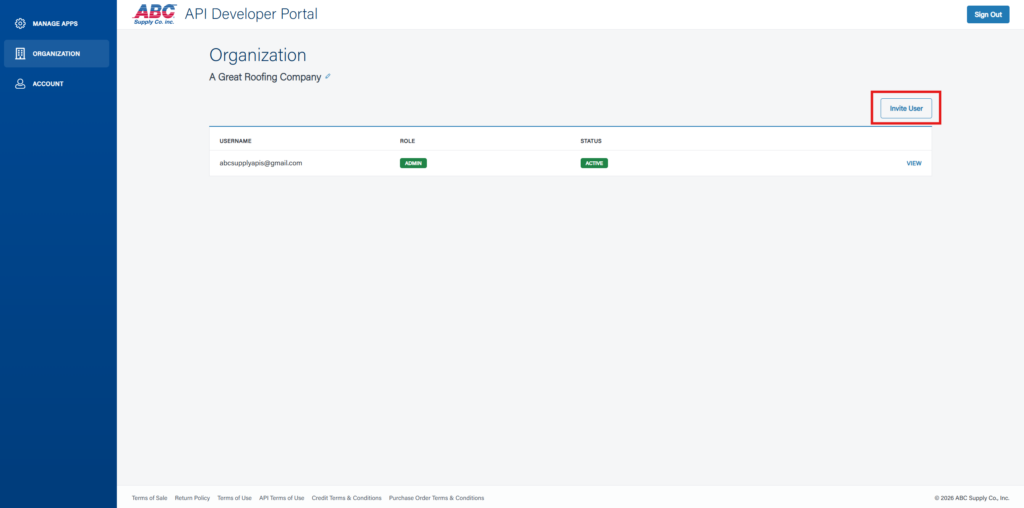
2. To update the Organization name, click the pencil icon next to the current name.
3. Existing users’ Username, Role, and Status are specified for each user. To invite an additional user, click “Invite User”.
4. Specify the user’s email address and Permission level:
- Admin – create/manage/delete the Organization’s applications and invite/manage Organization users
- Read Only – ability to view the Organization’s applications and Organization users
- Read + Write – ability to create/manage/delete the Organization’s applications
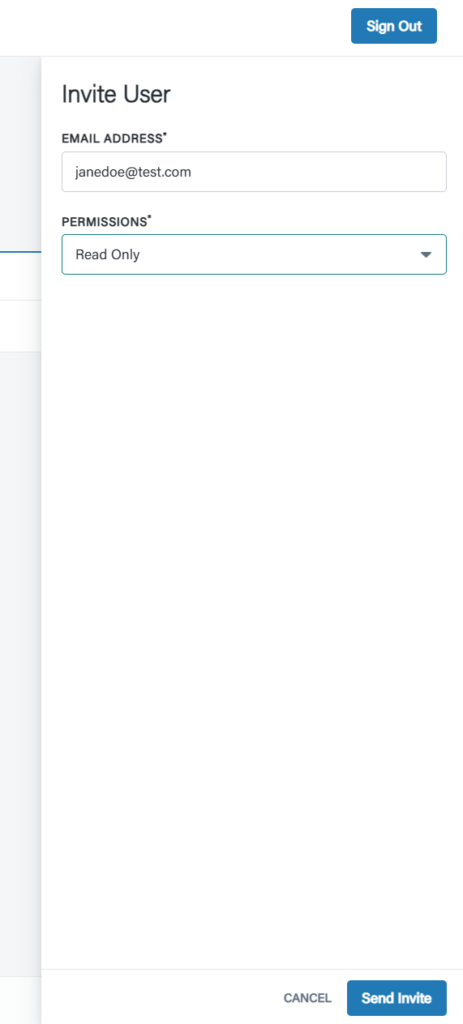
5. Click “Send Invite”. The user will receive an Okta email with a verification code to access your organization.
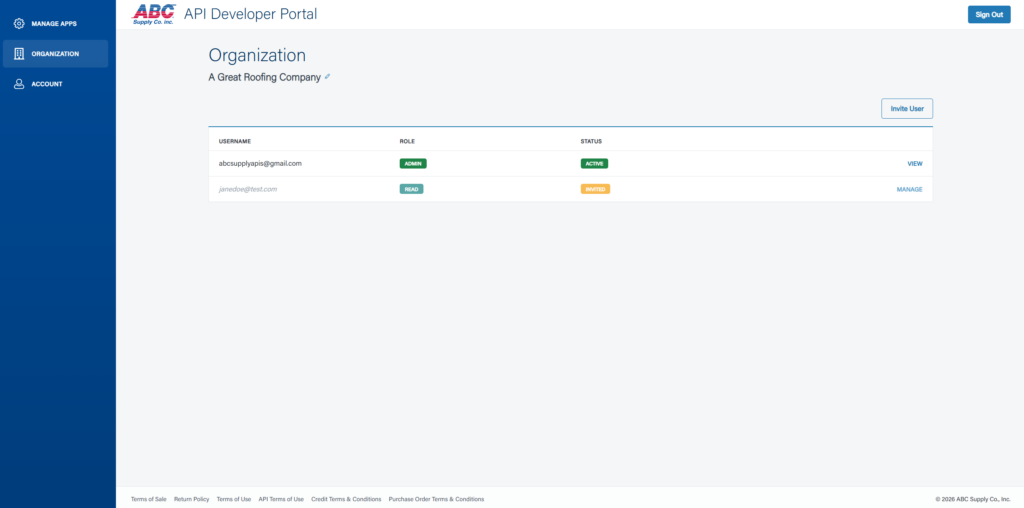
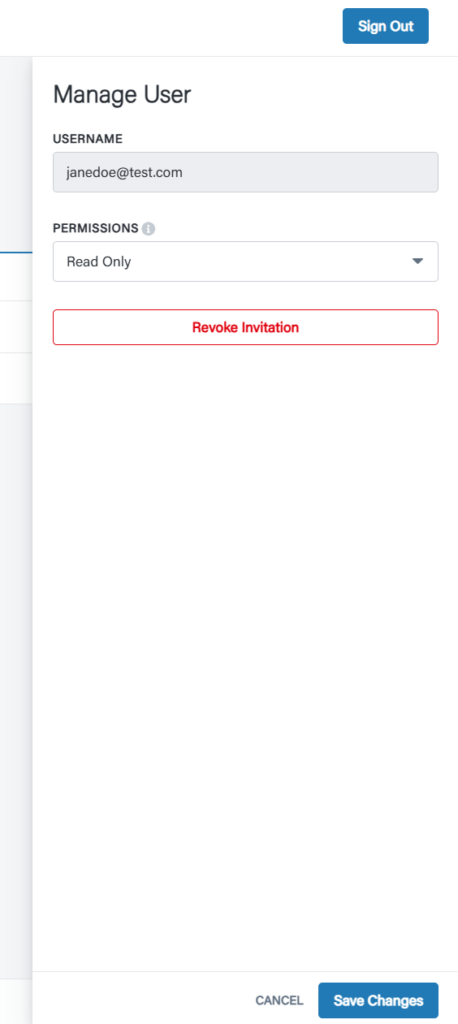
6. To update a user’s permissions or revoke access, click “Manage”.
- Update Permissions by changing the dropdown selection and click “Save Changes”.
- To revoke access, click “Revoke Invitation” anc click “Continue” on the confirmation pop-up modal.
Request Production Access (Individual Business Integrations Only)
- To request Production access for a Sandbox application, go to Manage Applications and click “Manage” to the right of your Sandbox application.
2. Click “Production Request”.
You will be prompted to provide a myABCSupply.com customer account email address and ABC Supply customer account number.
The following requirements must be met to be granted Production access:
- The email address must be a valid user account enrolled with the provided ABC Supply customer account number in myABCSupply.com
- The ABC Supply customer account number must be a valid ABC Customer account number
Additional verification by the API Support team may be required once the Production Request is sent. Our team will contact you for any additional information needed to ensure the security of our customers’ accounts.
3. Enter myABCSupply.com customer account email address and ABC Supply customer account number and click “Continue”.
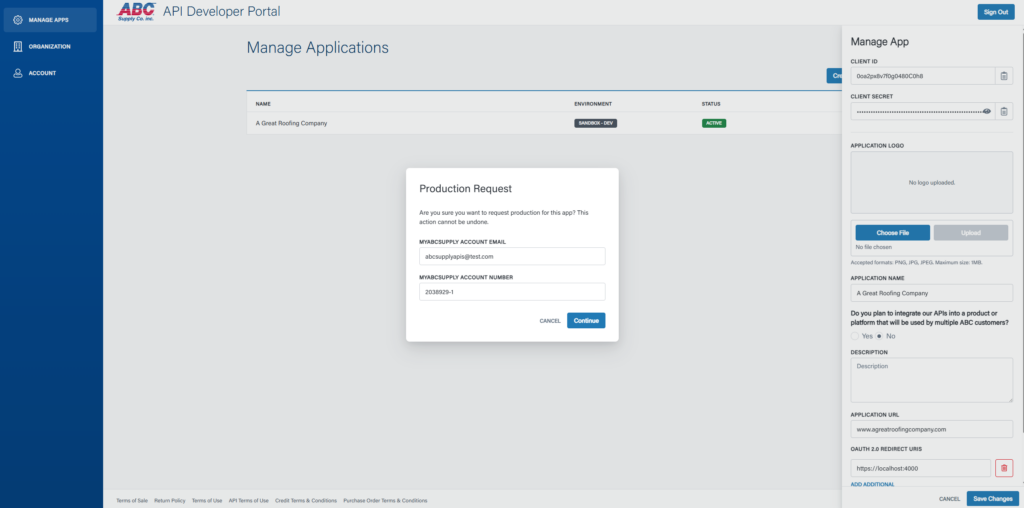
The API Support team will be notified of your Production request and your API access application for Production will appear in the Applications list with “Pending” status. If your application’s access request is verified and approved, you will be notified and your Production application will be ready for use. If your application’s access request is rejected, you will receive an email notification with additional details.
NOTE: Please allow 1-2 business days for processing of your Production Request review.
Request Production Access (Third-Party Aggregator Integrations Only)
NOTE: Please ensure that your integration is ready for Production access and meets ABC Supply’s Product access requirements. A review demo of your integration is required prior to Production access provisioning. For a list of requirements and additional information, please see Third-Party Aggregator Production Access.
- To request Production access, click “Manage” to the right of your Sandbox application.
2. You must provide a product logo for your application that may be used for promotion and marketing your integration within the abcsupply.com and myABCSupply.com websites. To upload an image, click “Choose File”, select a file from your directory, and click “Upload”.
Requirements:
- Accepted formats: PNG, JPG, JPEG
- Maximum size: 1MB
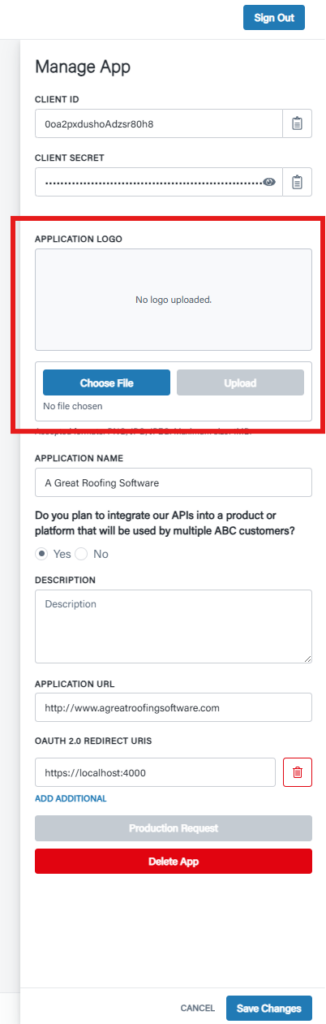
3. Once you have successfully uploaded the image, a preview will appear and the “Production Request” button will be active. Click “Production Request” and click “Continue” on the confirmation pop-up modal.
The API Support team will be notified of your Production request and your API access application for Production will appear in the Applications list with “Pending” status. API Support will reach out to you to schedule an integration review demo for Production access approval. For additional details about Production access requirements, please see Third-Party Aggregator Production Access.
NOTE: Please allow 1-2 business days for processing of your Production Request review.